DigitalOcean
Inngest functions can be deployed to DigitalOcean's Functions, App Platform, or Droplets.
This page covers how to configure the Inngest Add-Ons for your DigitalOcean App Platform projects or Droplets. To configure Inngest with DigitalOcean Functions, see the serve() reference.
- Configure a DigitalOcean App Platform project or Droplet with a new Inngest account
- Configure a DigitalOcean App Platform project or Droplet with an existing Inngest account
Configure a DigitalOcean App Platform project or Droplet with a new Inngest account
Prerequisites
Before starting, make sure you have:
- A DigitalOcean account with an application deployed on App Platform or on a Droplet.
- Access to SaaS Add-Ons and environment variables in your App Platform project or Droplet.
Step 1: Add Inngest as a SaaS Add-On
From your DigitalOcean dashboard:
- Navigate to the Inngest Add-Ons page
- Click the "Add Inngest" button in the top-right.
- Select the region closest to your app's deployment.
- Click "Create Resource".
DigitalOcean will create an Inngest account for you.
You can now proceed to step 2 to access your Inngest application credentials.
Step 2: Access your Inngest application credentials
Navigate to your DigitalOcean Dashboard and click "Add-Ons" in the left sidebar.
Once the Inngest Add-On is installed, click the "View Inngest" link to access the Inngest Dashboard:
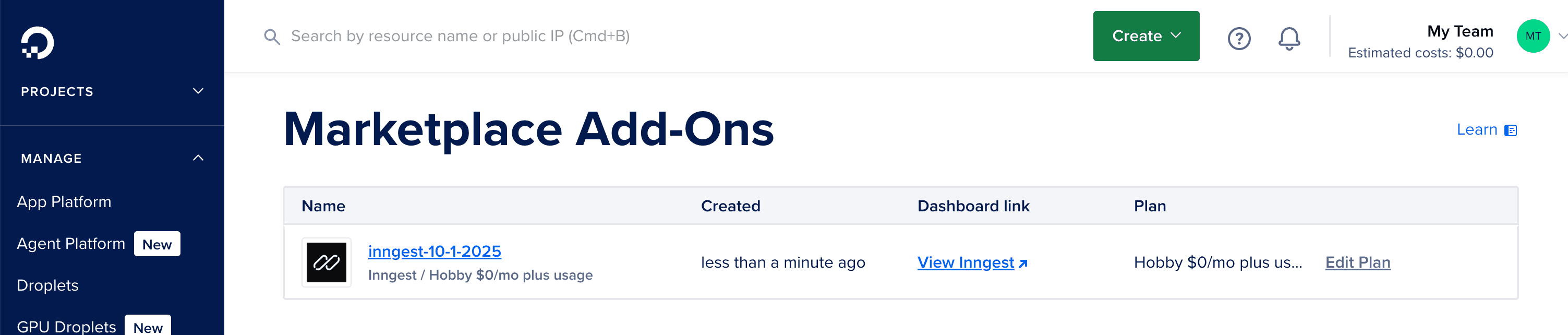
From the Inngest Dashboard, click the keys icon in the top-left to access the Event and Signing keys:
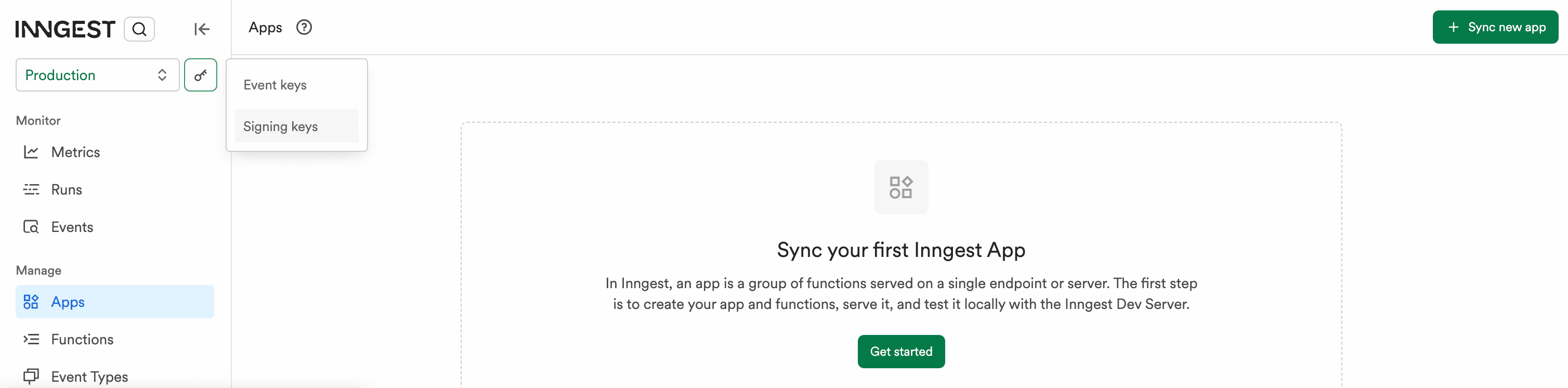
Visit both the Event key and Signing key pages to copy their values.
Step 3: Configure Environment Variables
Back in your DigitalOcean Dashboard, copy the Event and Signing keys into your application's environment variables as follows:
INNGEST_EVENT_KEY→ copy from the Inngest DashboardINNGEST_SIGNING_KEY→ copy from the Inngest Dashboard
You're all set: install and configure the Inngest SDK
Your DigitalOcean application is now configured with the Inngest Add-On. You can now install the Inngest SDK in your application and follow the tutorials below based on your language and framework:
Note: Once your application is configured and deployed with the Inngest SDK, go to the Inngest Dashboard to sync your application.
Configure a DigitalOcean App Platform project or Droplet with an existing Inngest account
To configure a DigitalOcean App Platform project or Droplet with an existing Inngest account:
Follow this guide to create and sync a new app in Inngest Cloud.